
Parent Registration
How do I sign up?
- Go to: https://stvincentstmary-oh.finalforms.com
- Locate the parent icon and click NEW ACCOUNT below.
- Type your NAME, DATE OF BIRTH, and EMAIL. Next, click REGISTER.
NOTE: You will receive an email within 2 minutes prompting you to confirm and complete your registration. If you do not receive an email, then check your spam folder. If you still can not locate the FinalForms email, then email support@finalforms.com to inform our team of the issue.
- Check your email for an ACCOUNT CONFIRMATION EMAIL from the FinalForms Mailman. Once received and opened, click CONFIRM YOUR ACCOUNT in the email text.
- Create your new FinalForms password. Next, click CONFIRM ACCOUNT.
Click REGISTER STUDENT for your first child
What information will I need?
Basic medical history and health information. Insurance company and policy number. Contact information for doctors, dentists, and medical specialists. Hospital preference and contact information.
How do I register my first student?
IMPORTANT: If you followed the steps on the previous page, you may Jump to Step number 3.
- Go to: https://stvincentstmary-oh.finalforms.com
- Click LOGIN under the Parent Icon.
- Locate and click the ADD STUDENT button.
- Type in the LEGAL NAME and other required information. Then, click CREATE STUDENT.
- If your student plans to participate in a sport, activity, or club, then click the checkbox for each. Then, click UPDATE after making your selection. Selections may be changed until the registration deadline.
- Complete each form and sign your full name (i.e., ‘Jonathan Smith’) in the parent signature field on each page. After signing each, click SUBMIT FORM and move on to the next form.
- When all forms are complete, you will see a ‘Forms Finished’ message.
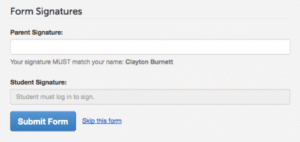
IMPORTANT: If required by your district, an email will automatically be sent to the email address that you provided for your student that will prompt your student to sign the required forms.
How do I register additional students?
Click MY STUDENTS. Then, repeat steps number 3 through number 7 for each additional student.
Document Upload Instructions:
Option 1: Upload a File from your Computer.
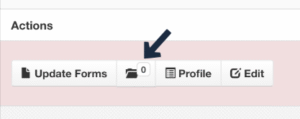
- Click the Document Folder button, locate the file, select document type, and upload.
- Be sure the file is a DOC, PDF, JPG, or PNG.
Option 2: Upload a Photo from your Phone or Tablet.
- Click the Document Folder button, take/locate your photo, select document type, and upload.
- Be sure the photo is clear and well-lit.
IMPORTANT: Name your file to help the administrators identify the document.